![logo-modified.png]](https://support.skinconsult.com/hs-fs/hubfs/logo-modified.png?width=40&height=40&name=logo-modified.png)
First of all, make sure you are logged in on our SkinApp at https://app.skinconsult.com/ using the credentials we have provided you. If you did not receive credentials, please reach out to us at office@skinconsult.com
After you log in, you will be on the Home page.
In the left panel, click Add New Project (Beta)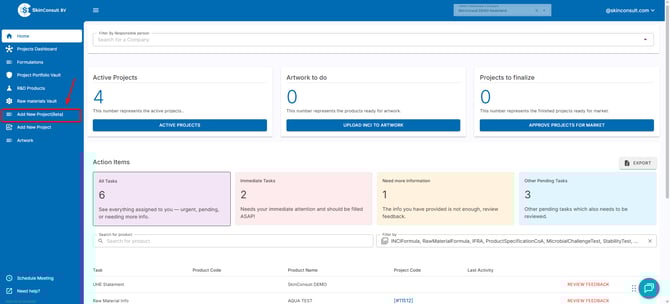
this will bring you to the page where you can fill in the information on your new project.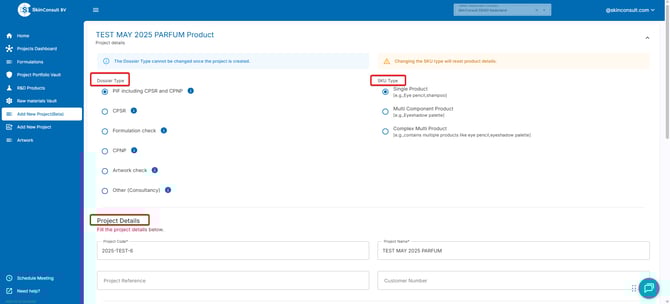
First fill in all the required fields:
Dossier Type, SKU Type & Project Details (Project Code and Project Name.)
Scroll down and fill in what companies are involved, in what countries the product(-s) will be sold as well as the Age Range and Consumer Type.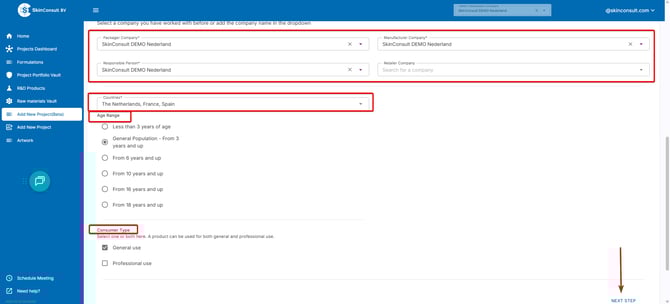
after filling all information in, click NEXT STEP 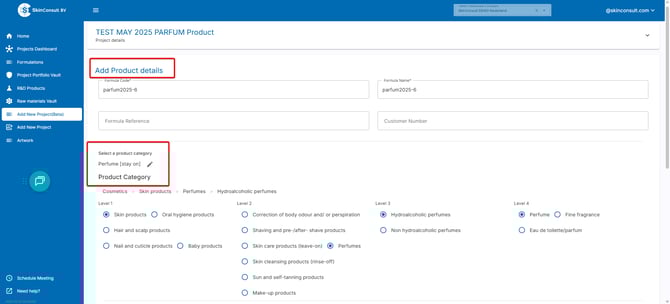
and fill in the Product Details, Product Category, Physical Form & Packaging.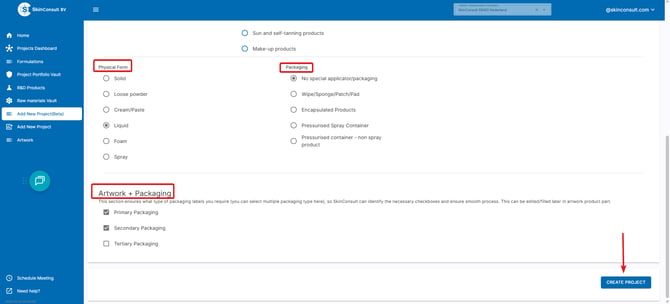
Lastly, fill in what types of artwork will be made for this project. Primary artwork (bottle/tube), secondary artwork (box) and/or tertiairy artwork (leaflet/flyer).
Scroll down and click CREATE PROJECT in the bottom right corner to finalize creating your project.