![logo-modified.png]](https://support.skinconsult.com/hs-fs/hubfs/logo-modified.png?width=40&height=40&name=logo-modified.png)
First of all, make sure you are logged in on our SkinApp at https://app.skinconsult.com/ using the credentials we have provided you. If you did not receive credentials, please reach out to us at office@skinconsult.com
After you log in, you will be on the Home page. The quickest way to find the feedback we have given you is to scroll down on the Home page to the Action Items.
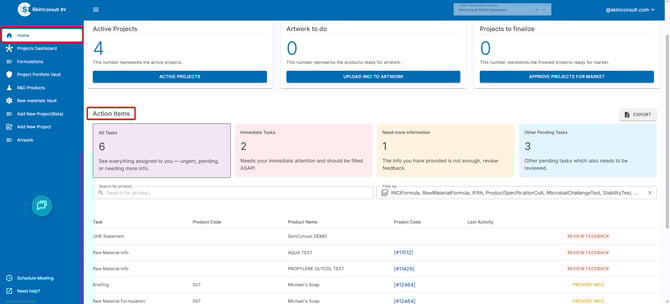
1. All Tasks --> these are all the tasks combined and unfiltered.
2. Immediate Tasks --> the information or documentation you provided is not compliant.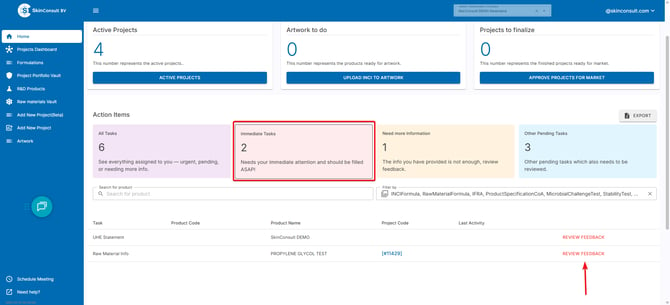
Click REVIEW FEEDBACK to see the feedback we have for your Product Part.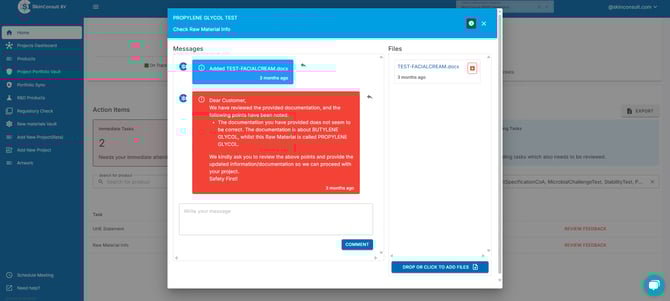
3. Need more information --> we need (additional) information or documentation from you.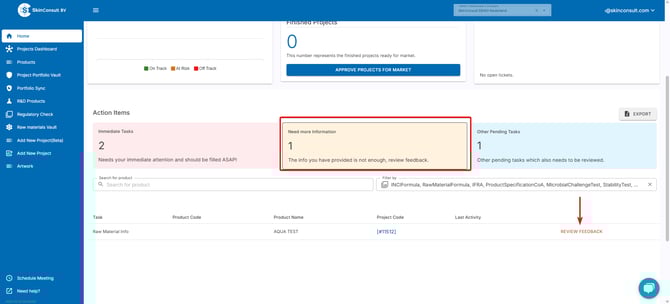
Click REVIEW FEEDBACK to see the feedback we have for your Product Part.
4. Other pending tasks --> we did not receive documentation from you yet for this step.
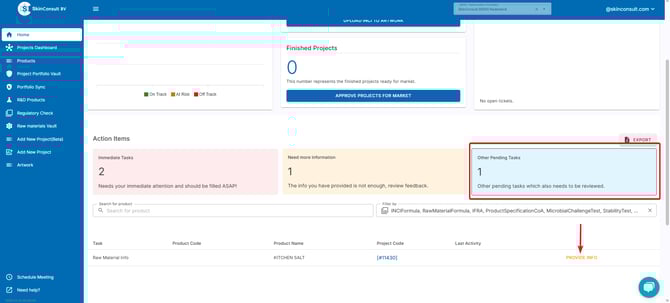
Click PROVIDE INFO
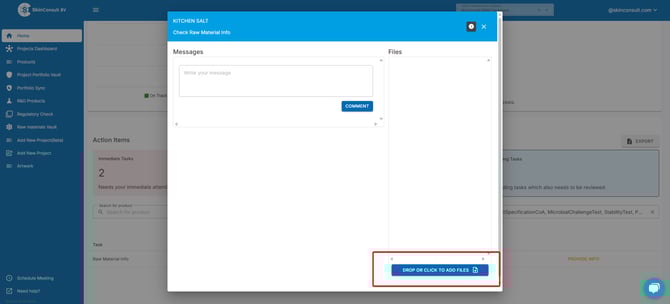
Click the ''DROP OF CLICK TO ADD FILES''. Right now you can drop or click to add files for us to check.
Another option is to go to a specific Project Page.
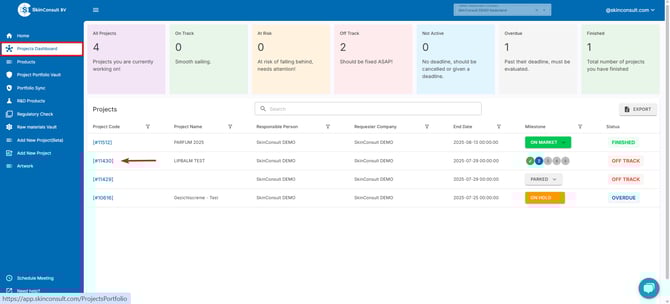
Here you can see that there are 8 PRODUCT PARTS (this can be any product part except for Raw Materials) and 2 RAW MATERIAL parts that need your attention. This can be either a Product Part with feedback from us or a Product Part for which you did not provide us with documentation yet.
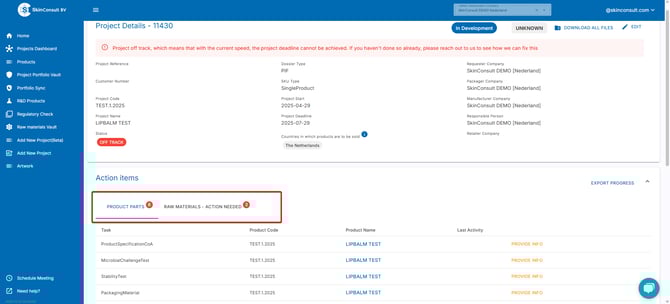 kindly note: a single PRODUCT PART is for an individual product, so not for all products within the project.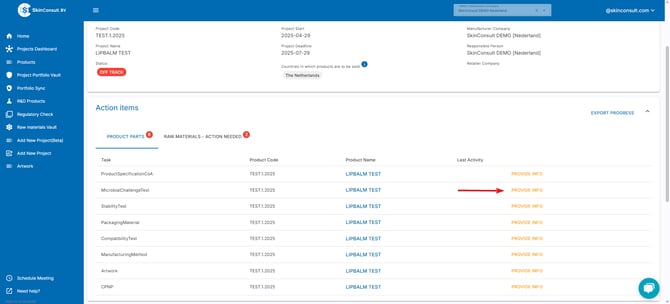
Click REVIEW FEEDBACK to see the feedback we have for your Product Part or click PROVIDE INFO to provide us with documentation and/or information.
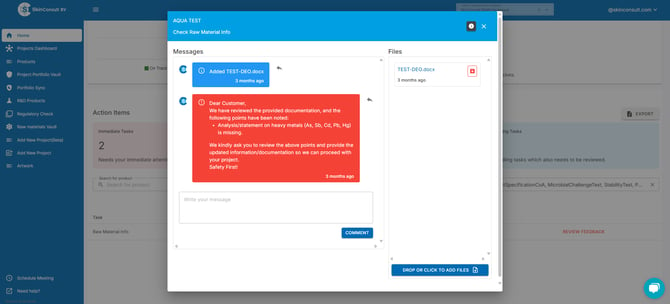
When you go to the RAW MATERIALS - ACTION NEEDED, you will find all of your Raw Materials that need attention, in this case the ''AQUA TEST'' has received feedback from us.
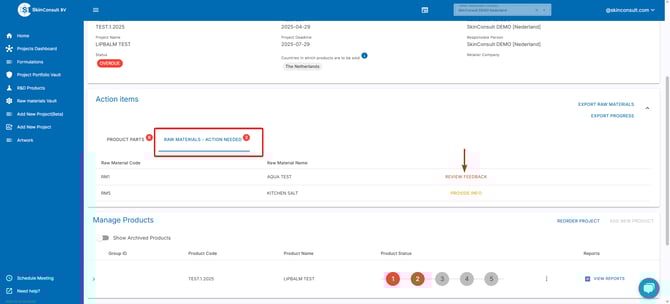
Click ''REVIEW FEEDBACK'' in order to open the pop-up that has information for you.
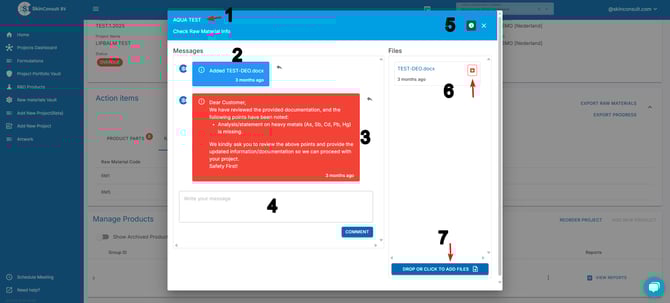
1. The name of your Raw Material.
2. The files you have added to this Raw Material Info page.
3. The feedback we have for your Raw Material.
4. You can respond to our feedback or ask your question using this field.
5. Pressing this info-bubble will give you information on what we expect you to upload.
6. This is the list of files that are on this page. Click the red button to archive your file when it is not relevant anymore.
7. This is the button you can use to upload new files.
Kindly note: this pop-up with comments and the option to upload file is the same for every part in the app, not just Raw Materials.