![logo-modified.png]](https://support.skinconsult.com/hs-fs/hubfs/logo-modified.png?width=40&height=40&name=logo-modified.png)
First of all, make sure you are logged in on our SkinApp at https://app.skinconsult.com/ using the credentials we have provided you. If you did not receive credentials, please reach out to us at office@skinconsult.com
After you log in, you will be on the Home page.
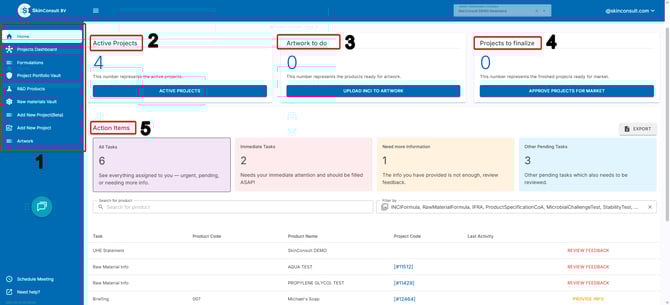
Here you will immediately see the following 5 things:
1. The menu bar: here you can navigate through all different parts of the process. more about these different tabs later in this article.
2. The Active Projects: here you get a quick look at the amount of projects that are active.
3. The Artworks to do: once your product passes through Milestone 3 (Formulation) succesfully, you can find your complete INCI-declarations here and add them to your Artwork.
4. The Projects to finalize: when your project is finalized, you can approve your project for the market.
5. The Action Items: this is basically an overview of all the tasks we expect you to do still. If all are at 0, great! If not all are at 0, please provide us with documentation and/or information so we can proceed with your projects!
Let's proceed with the menu bar:
Home
This has been explained above.
Projects Dashboard
After pressing this button, you will find yourself on the Projects Dashboard.
As seen in image below, there are several important pieces of information to see here.
First of all, the top row contains coloured blocks which show your total number of projects and how many of your projects are either On Track, At Risk, Off Track, Not Active, Overdue and Finished. You can click on the coloured block of Off Track to give immediate attention to the projects that are Off Track.
We suggest to start at Off Track and then work your way towards the At Risk and On Track blocks to make sure all your projects will be finished in a timely manner.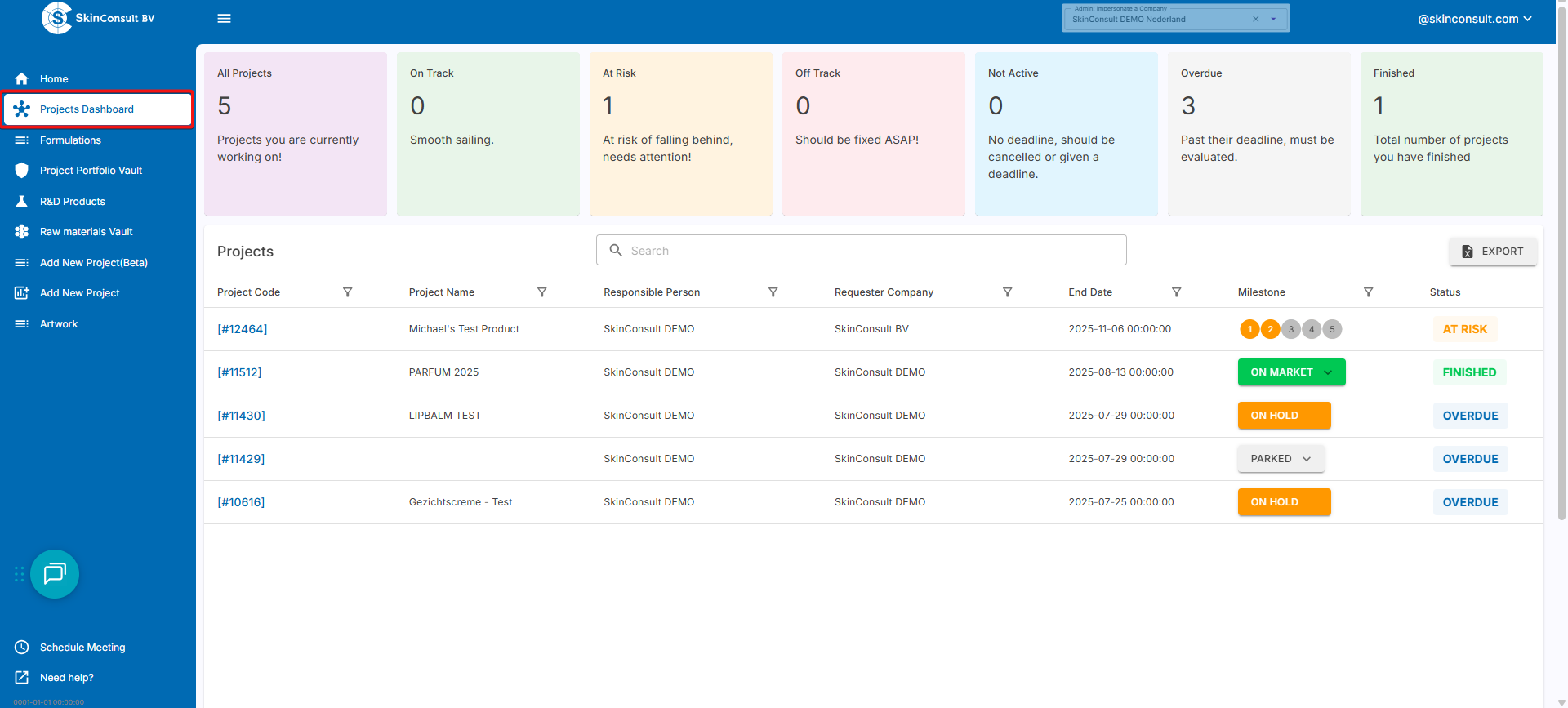
At the bottom row, you will find a list of your projects. You can use the search bar to look for a specific project name or project code. You can also use the filters to narrow down the projects you are looking at.
All relevant information can quickly be seen here: the Project Code (for your internal reference and also handy when communicating to us about a certain project), Project Name, the Responsible Person & Requester Company, End Date, the Milestone that the project is currently at and lastly the project Status.
If you want to navigate to a project quickly, press the blue Project Code button and you will be taken to the respective Project Page immediately.
Formulations
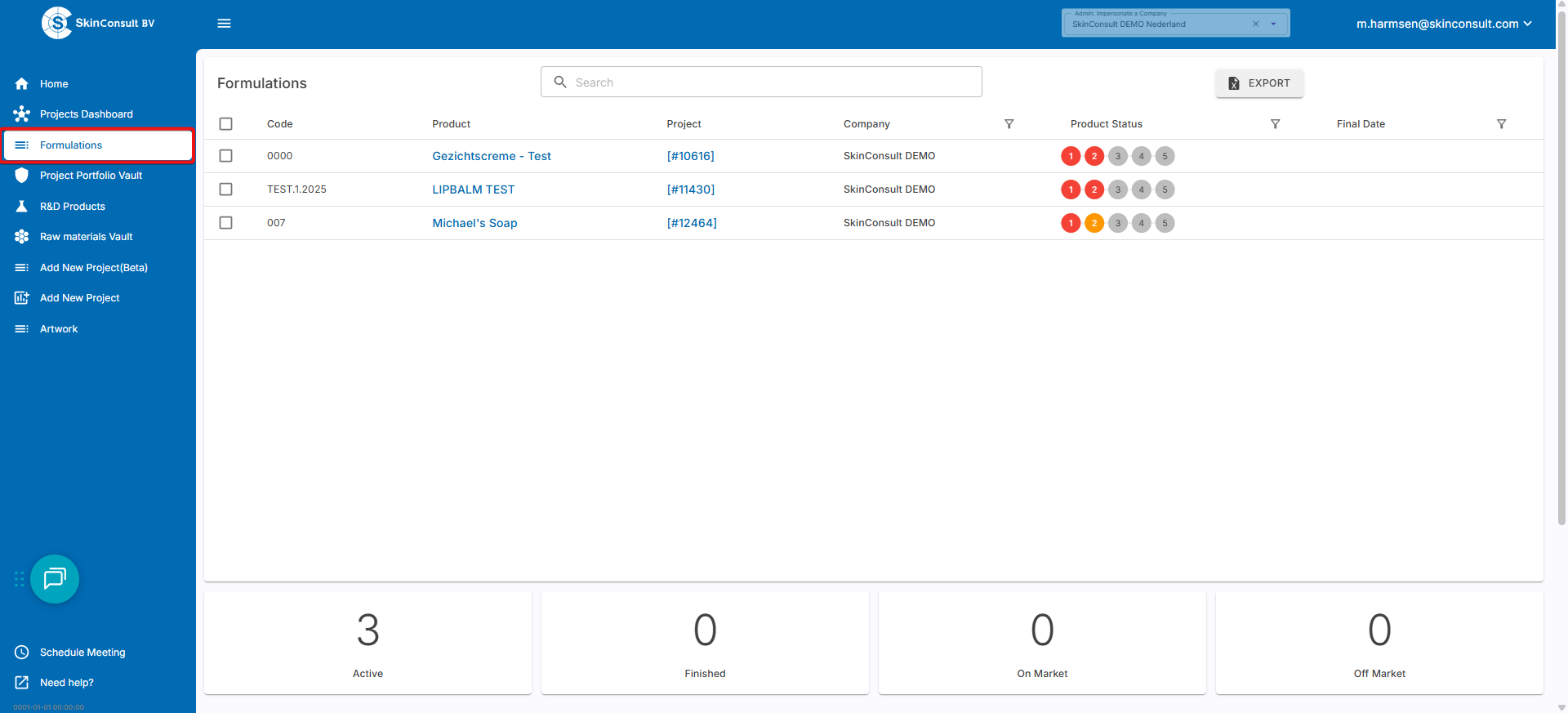
On the Formulations page, you get an overview of all products within your company. You can find the Product Code, Product Name, Project which it is in, as well as the Product Status and a button to download your Reports for that product.
Project Portfolio Vault
On this page, you can find all of your Projects and filter through them to get an overview of past, present and possible future projects.
R&D Products
When making formulations, you can check MoS values and which Annexes apply, before putting it in production. R&D stands for Research & Development. Use the following page to get more detailed explanation about this page and how to use the tool: How To: Use the R&D tool
Raw Materials Vault
Use this page to find all of your Raw Materials in one place.
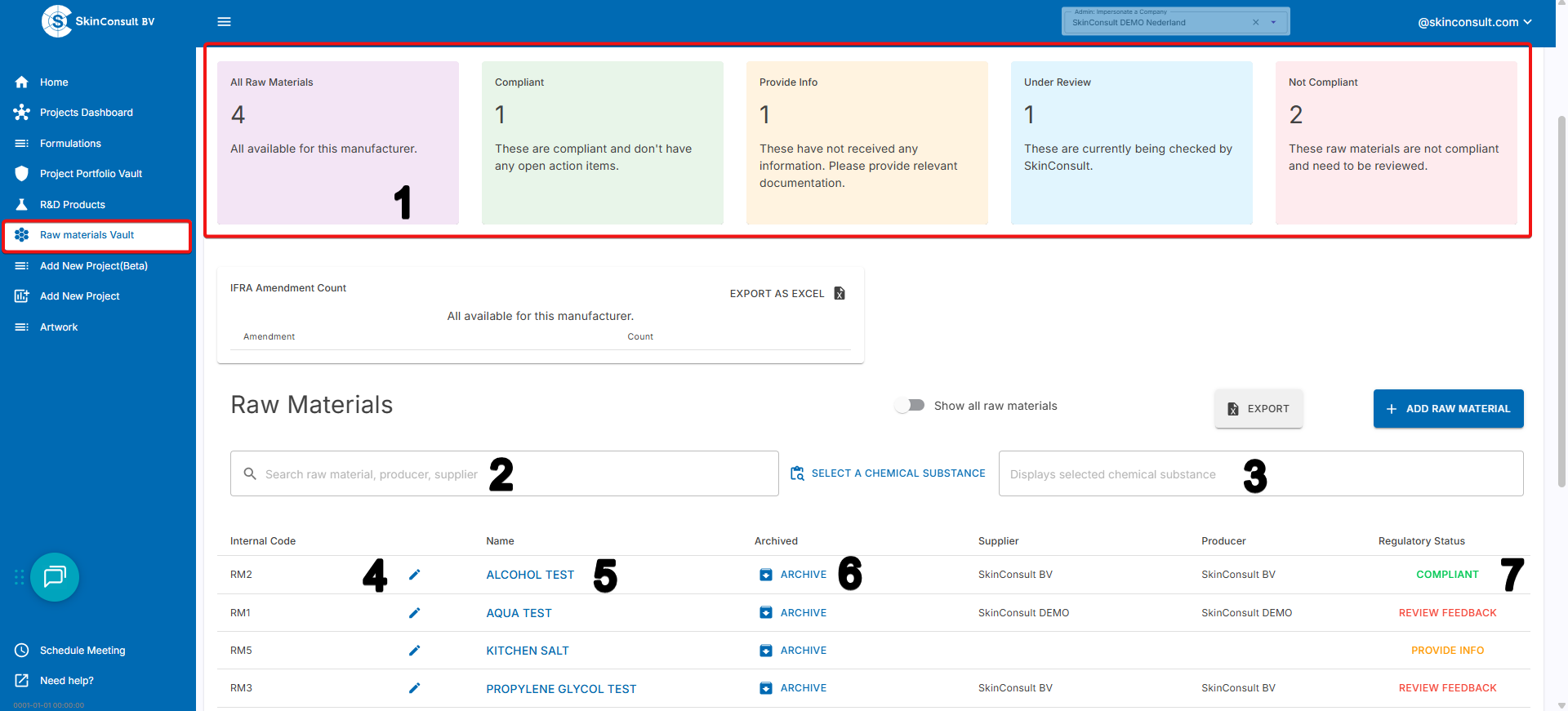
1. Here you can find a list of all Raw Materials on the top right block, next to that the blocks with Compliant Raw Materials, Raw Materials for which you will need to Provide Info, Raw Materials which are Under Review and Raw Materials that are Not Compliant.
Clicking one of these boxes will sort the type for you and lets you handle the most important ones first.
You can also use the search bars:
2. the left search bar to search for Raw Material Tradename, Supplier Name, or Producer Name.
3. he right search bar lets you fill in a specific chemical substance and then filters to all Raw Materials that contain that specific chemical substance.
4. You can easily adjust the Internal Code for your Raw Material if necessary.
5. Click on the Raw Material Tradename to go to the respective Raw Material Info page to see documentation you have shared with us and possible feedback.
6. You can archive a Raw Material when you no longer use this Raw Material
7. At the Regulatory Status, you can quickly see
whether the Raw Material is in compliance (COMPLIANT)
whether it needs additional information/documentation (REVIEW FEEDBACK)
or whether we did not receive any information/documentation from you yet (PROVIDE INFO)
Add New Project (Beta)
Use this page to create a new project for your company. You can find detailed instructions on how to do this on the following link How to: Create a Project
Add New Project
This is our old page to create projects, you can use this one still but we suggest you use our new and better page: Add New Project (Beta). You can find detailed instructions on how to do this on the following link How to: Create a Project
Artwork
For designers dealing with artwork only, the SkinApp has a specific workflow to handle artwork.
This page also comes in handy for those who want a complete overview of all artworks. Please find more detailed instructions on the page How To: Artwork