![logo-modified.png]](https://support.skinconsult.com/hs-fs/hubfs/logo-modified.png?width=40&height=40&name=logo-modified.png)
Go to the Project page of the Project that you want to re-order.
On its project detail page, navigate to Manage products. Here, you can click on the button
REORDER PROJECT
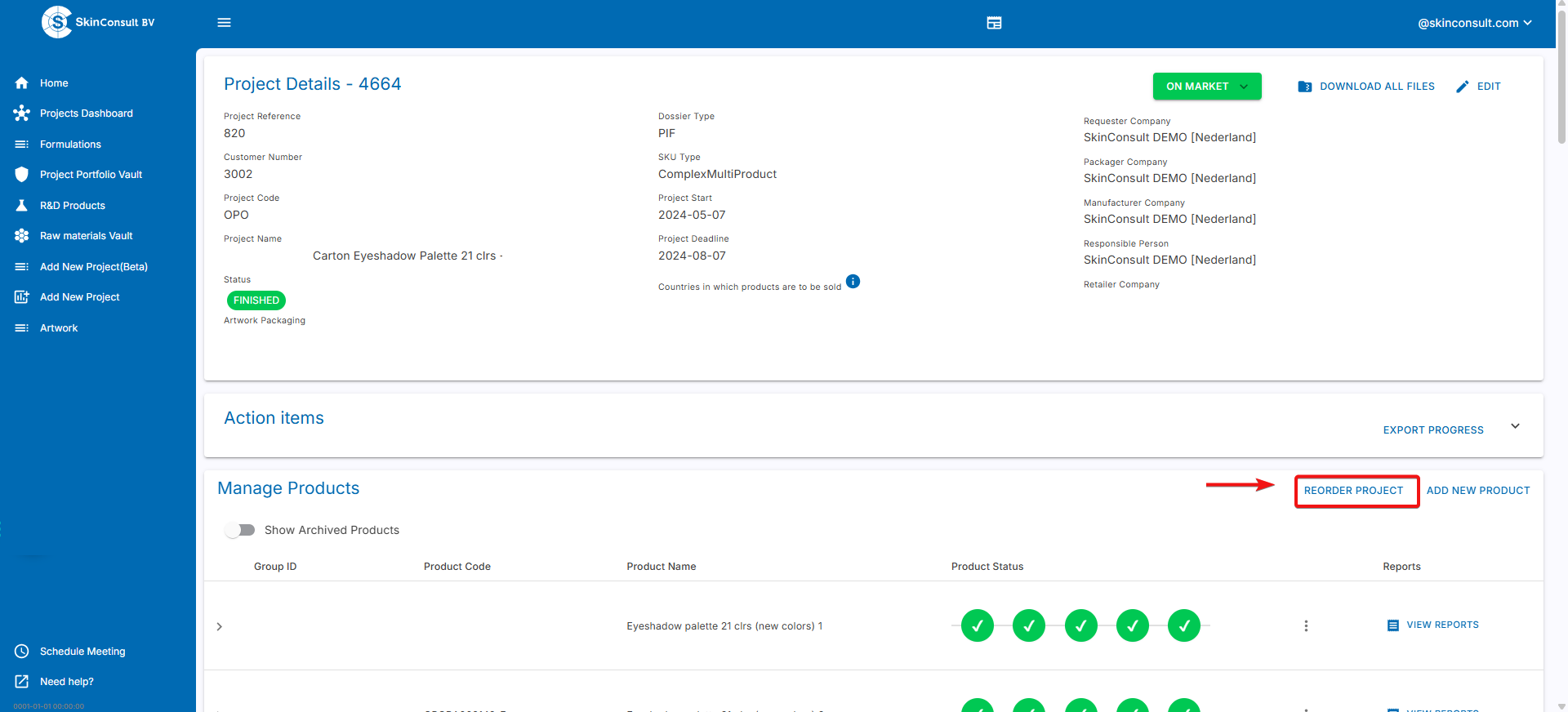
You will be asked to fill out the new project references like the code and other identifiers that you may use internally or externally with your customers for better communication. Note that these are optional and can be completed at a later time.
Next, select the parts of the current project that you want to bring along into your reorder. You can select the formulation, packaging material and artwork.
For multicomponent projects like eyeshadow palettes, you can also choose specific shades to include or exclude in the re-order. If you also want to include additional new shades, you can do so after completing the re-order.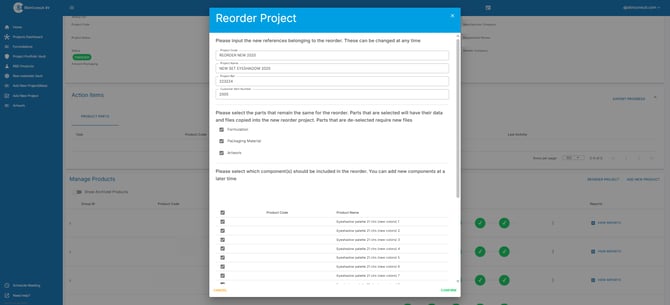
After filling out all references, the parts to be included, and the shades (if multi-component), then confirm the reorder by pressing CONFIRM. A new project is created and you're good to go!