![logo-modified.png]](https://support.skinconsult.com/hs-fs/hubfs/logo-modified.png?width=40&height=40&name=logo-modified.png)
Navigating to the artwork page
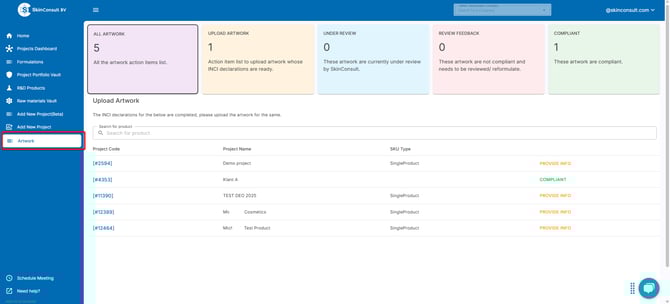
Go to the SkinApp. In the left index, select Artwork. Alternatively, navigate directly to this page using the following link: https://app.skinconsult.com/artwork
This page shows filters displaying the various stages of the artwork:
1. All artwork -> groups all (unfinished) artwork projects
2. Upload artwork -> for designers to upload new artwork
3. Under review -> the projects currently under review by SkinConsult
4. Review feedback -> for designers to review feedback made by SkinConsult
5. Compliant -> when artwork is approved by SkinConsult so that designers know the artwork is correct
When selecting any filter, the table beneath the filters will update accordingly to show the relevant projects.
To upload artwork, review feedback, or to just see the overall details of a project, select the call-to-action (righter-most column of the table). You will be guided to the specific artwork page of that project
How to provide artwork details
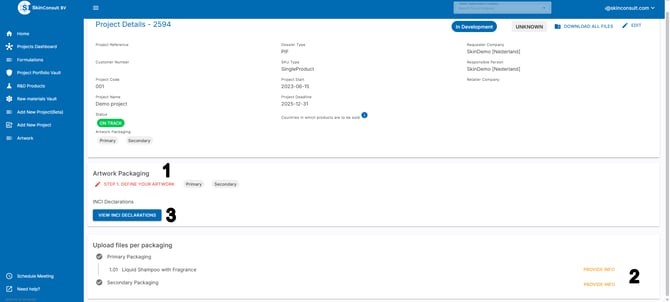
1. Select the Artwork Packaging, e.g. does the packaging consists of primary, secondary and/or tertiary packaging?
2. For each Artwork type (primary/secondary/tertiary), you can now upload one or multiple files
3. If you need to include the ingredient declaration on your artwork, you can easily access this ingredient declaration by clicking the button VIEW INCI DECLARATIONS
If you need help with putting the correct information on the correct place, see this helpful article on Artwork labelling