![logo-modified.png]](https://support.skinconsult.com/hs-fs/hubfs/logo-modified.png?width=40&height=40&name=logo-modified.png)
How to create a test product
First, log into your account in the SkinApp.
Go to the pre-scanner tool via the left menu (if you do not see this tool, you're not a beta user yet, contact office@skinconsult, to have access)
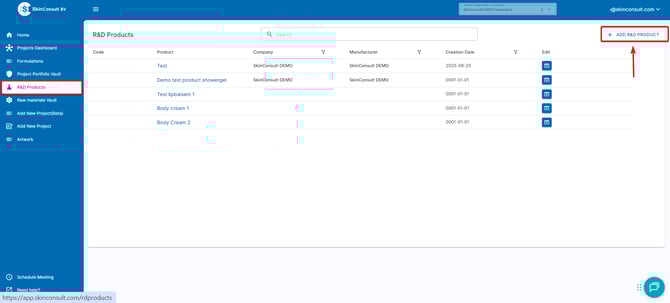
Within the pre-scanner tool page, you can create a new product via the + ADD PRODUCT button.
Please do note that this is not a product we will make a CPSR/PIF for, this product only exists within the pre-scanner tool
When you click on this button, a pop-up will appear to give in information on the product.
Required are the ProductName and ProductType. You add extra information, this will be taken into account for the blacklists. For example, if you want to check if your product complies with a specific blacklist for a retailer, you can add a retailer to the product. Specifications on the product help to check the compliance to the Cosmetic Regulation. For example, some ingredients have a different threshold per age range (Age less than 3 years vs General population), or per packaging type (aerosol vs standard packaging). Extra information is not mandatory to add, but will give a more complete result.
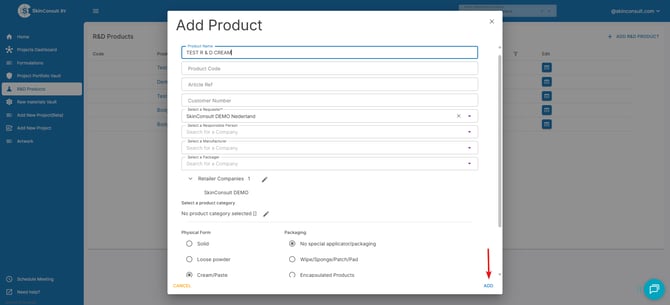
Click on ADD, and the product will be added to the pre-scanner tool.
Click on the product name you just created
You will see a page specific for this product. You also see information on the product as well as the Regulatory List(s) that are relevant for this product.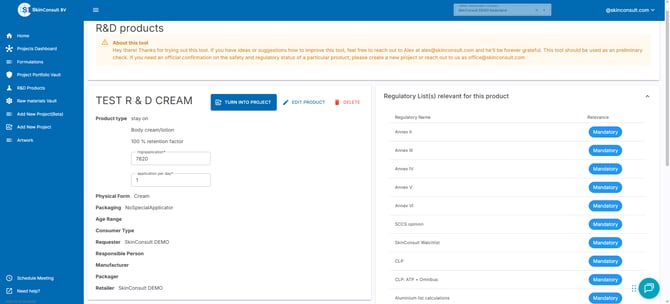
Now you can add ingredients, one-by-one, or as bulk.
You can add ingredients individually like this:
1. click the button BROWSE AND CHOOSE A CHEMICAL SUBSTANCE.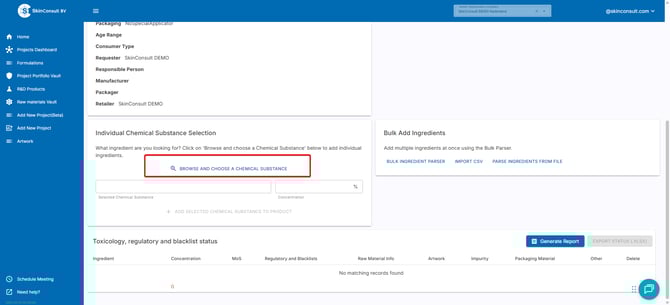
2. searchthe chemical substance you want to add and click on it.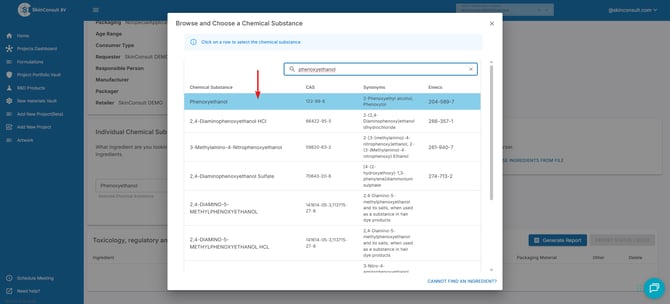
3. add the concentration of the chemical substance and press ADD SELECTED CHEMICAL SUBSTANCE TO PRODUCT. 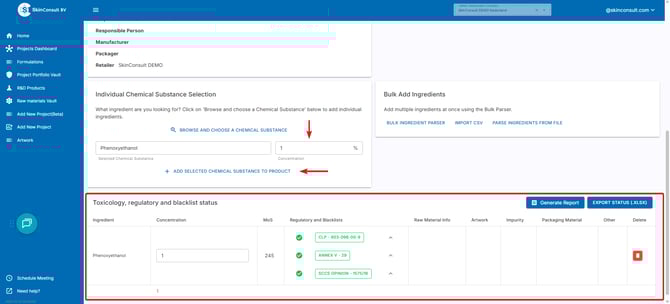
Now the chemical substance will appear in the bottom along with other chemical substances you might add.
Using the BULK INGREDIENT PARSER (or using import/pasting) you can add multiple ingredients at once:
1. click the button BULK INGREDIENT PARSER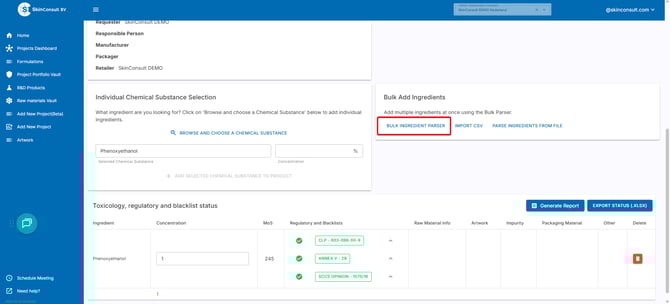
2. Add the chemical substance Names (1), the Concentration (2) and then press PARSE INPUTS (3) and lastly click CONFIRMSELECTION (4) to add the ingredients to your product.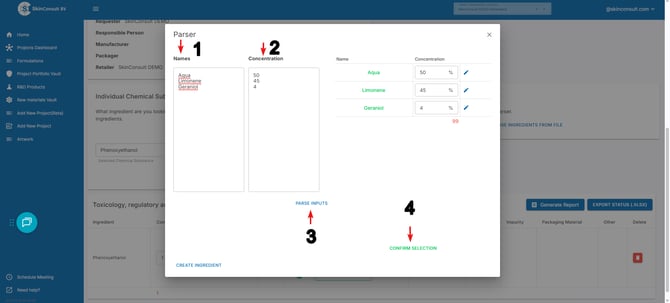
After adding the ingredients (INCI's), you will see a list appear with INCI's, concentrations, the MoS value and Annexes.
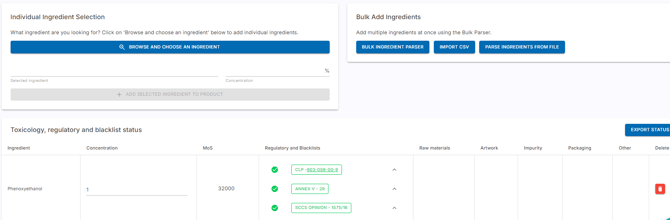
If the product does not comply with an annex or blacklist, red entries will appear with information why it is not compliant

If the MoS is too low, the correct value for a MoS of 100 will show when you hover over the red icon
 If there are other conditions, (i) icons will show
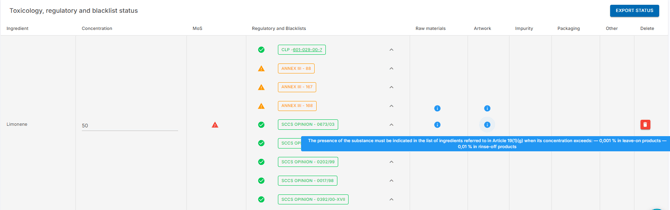
If needed, you can make an export with the Export button of your formula, including the MoS values and Annex information.
Information video
For video instructions, view below