![logo-modified.png]](https://support.skinconsult.com/hs-fs/hubfs/logo-modified.png?width=40&height=40&name=logo-modified.png)
Let's say you have received an updated list of impurities, IFRA statement or allergen list for you Raw Material.
First of all, make sure you are logged in on our SkinApp at https://app.skinconsult.com/ using the credentials we have provided you. If you did not receive credentials, please reach out to us at office@skinconsult.com
After you log in, you will be on the Home page. Go to your Raw Materials Vault in the menu bar on the left and select the manufacturer for the Raw Material you are looking for.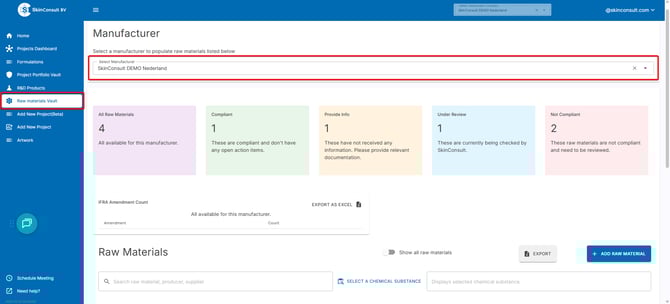
Let's say your Raw Material has previously been approved by us already but you have new documentation. You will filter on ''Compliant'' which only shows those Raw Materials.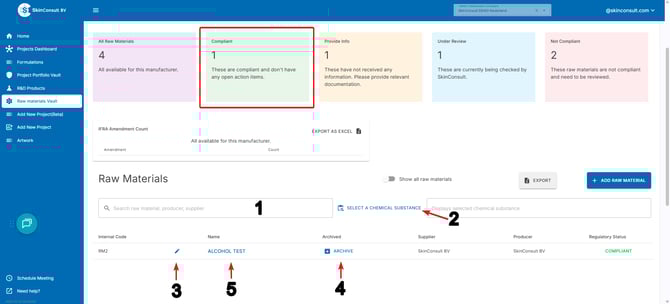
There are multiple ways to filter in order to narrow down your search. You can search for a Raw Material, producer or supplier by using the left search bar (1) or you can search on a specific chemical substance by selecting it with the right search bar (2).
After finding your Raw Material of interest you will have some options:
First of all, you can use the blue pencil (3) to change your Raw Material internal codeor Archive a Raw Material that is no longer relevant using the ARCHIVE button.
Lastly, if you want to adjust the documentation in the Raw Material, you click on the Raw Material Name (5).
This will open your Raw Material page and it will first up give you the information we extracted from your documents as well as the composition of your Raw Material.
When you scroll down to the bottom of the page you will find the messages send between you and SkinConsult (1) as well as a list of Products that contain this Raw Material.
You will also find all of your uploaded files here (3) as well as the option to archive files that are not relevant anymore (4). Archived documents have their name and date striped through as well as a orange button instead of a red one.
Lastly, when you press the DROP OR CLICK TO ADD FILES button (5) you will be able to provide us with new documentation for your raw material! After you upload a new file, we will check it again and provide you with feedback