![logo-modified.png]](https://support.skinconsult.com/hs-fs/hubfs/logo-modified.png?width=40&height=40&name=logo-modified.png)
What is CPNP?
CPNP stands for the Cosmetic Products Notification Portal. Article 13 of EC 1223/2009 states that any cosmetic product sold in the EU must submit information about the product and responsible person to the European Comission.
In case of a medical emergency - e.g. a child accidentally swallows a cosmetic product - a hospital can quickly access important information about that product in the CPNP.
Therefore, it is absolutely essential to notify your product in CPNP before selling your product.
Can I let SkinConsult notify my products in CPNP or do I need to do it myself?
SkinConsult can notify your products, so you can focus on other important things to do (building your brand, communicate with suppliers, eat some cake).
You only need to put in some work at the start, by setting up your EU account, create your organization and grant access to SkinConsult. In this guide we'll walk you through these steps.
How can I create my CPNP account?
There are a couple of simple steps to make your CPNP account and organisation. The CPNP website also has easy to follow steps on how to create an account.
- Go to the CPNP login page and click on "Create an account"
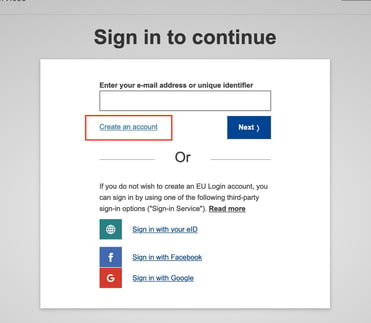
- Fill in all the required information on the webpage and click on "Create an account"
- Open your e-mail that you used to make an account, there should be an e-mail with a link from the European Comission to verify your account.
- Click on the link and create a password for your account.
- You will get confirmation that you have successfully logged in.
How can I log into my CPNP account?
- Follow this link
- Fill in your e-mail address
- Fill in your password
Now it is time to add a 2 step verification method
- Click on the gear icon in the top right corner
- Click on "My Account"
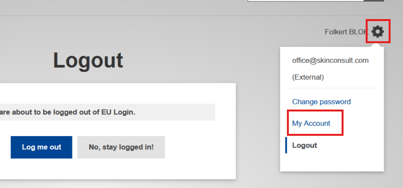
- Click on "Manage my mobile devices" or "Manage my Trusted Platforms and Security Keys"
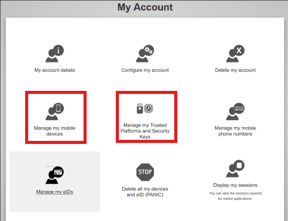
- If you clicked on the Mobile device option, click now on "Add a mobile device" and follow the steps explained in the portal.
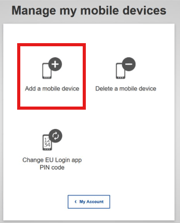
If you clicked on the Trusted Platforms and Security Keys option, click now on "Add a Trusted Platform" and follow the steps explained in the portal.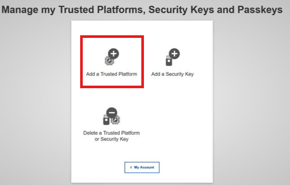
Now that you have added the two-step verification, the next step will be to create an organization in CPNP.
How can I make an organization in CPNP?
- Go to the following link
- Click on "request access"
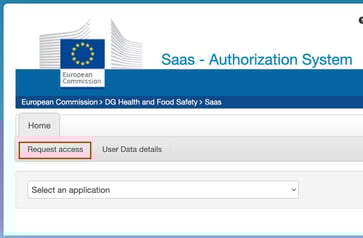
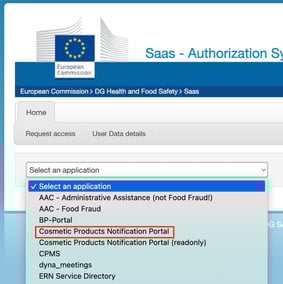
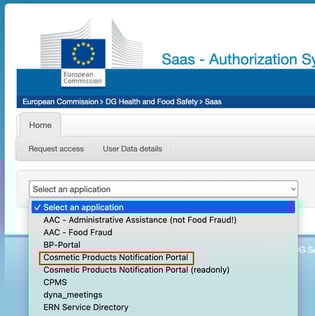
- Select "Cosmetics Product Notification Portal" in the list
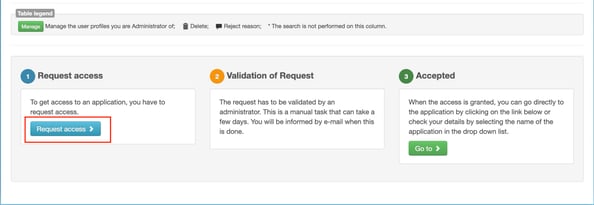
- Scroll down the page and click on "request access"
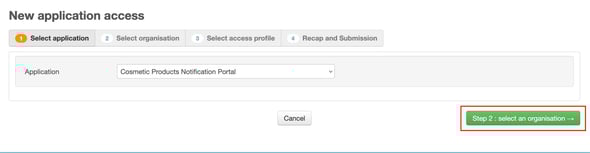
- Click on "Step 2: Create an organization". If you only see "Step 2: Select an organization" this is okay, you can still create an organization in the next steps.
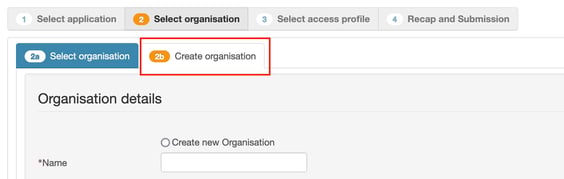
- Click on "2b: Create an organization" and fill in all the required information.
- If your organization is a sub organization, search for the organization parent, select the company and click on "step 3: Select an access profile"

- If your organization is not a sub organization, select "no parent organization" and click on "step 3: Select an access profile"

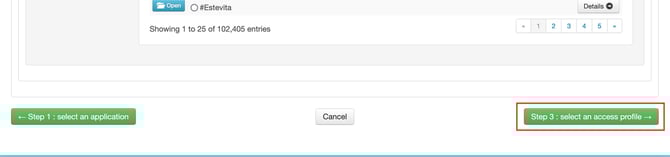
- If your organization is a sub organization, search for the organization parent, select the company and click on "step 3: Select an access profile"
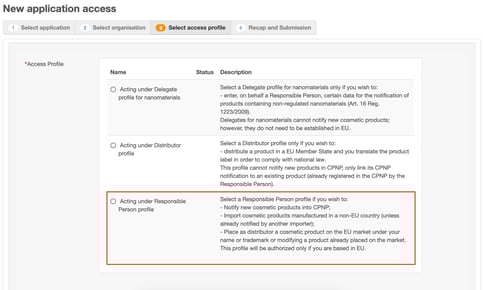
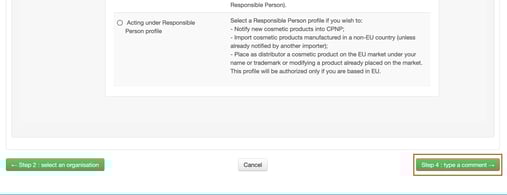
- Select the "Acting Under Responsible Person" access profile
- Click on "Step 4: Type a comment"
- It is not required to type a comment
- Click on "Submit request access"
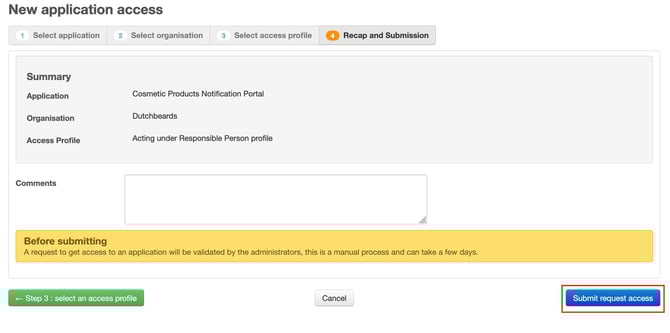
- If you want to let SkinConsult do the CPNP notifications for you: E-mail SkinConsult when your application has been approved
- Please note, it may take a few days before your application is approved by the European Commission. This is because they approve each application manually.
How can I accept SkinConsult's request for CPNP access?
If you want SkinConsult to do the CPNP notifications of your products for you, then we need to access to your organization. No need to exchange passwords, CPNP offers a secure way of accessing your account.
We will request access to your organization under the name "Folkert BLOK" / "nblokfol" (he founded SkinConsult over 10 years ago). We will always include a comment stating the request is from SkinConsult.
You need to accept our request, which is done in the following steps:
- Follow this link, and click on "Go To SAAS"
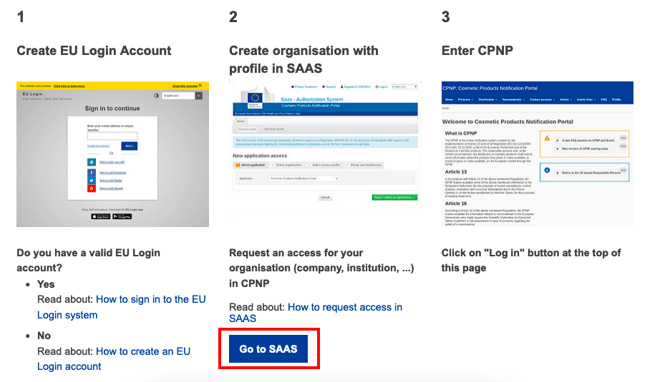
- Log in with your account and select "Cosmetic Products Notification Portal"
- Click on the "Manage" button, which will show you a list of all access requests
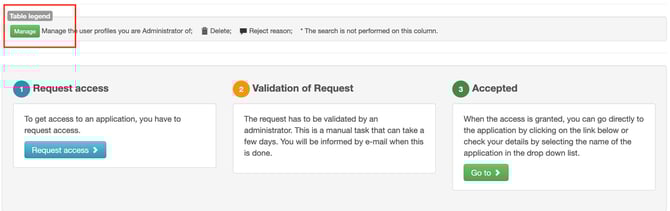
- Click on "Manage" next to the Folkert BLOK request

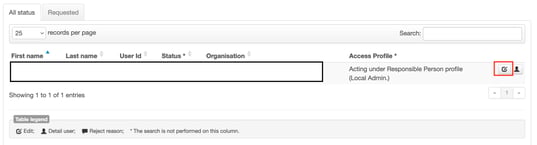
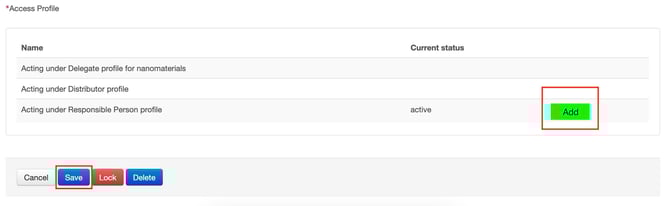
- Click on "Edit" followed by "Add" and finally click on "activate"
All done!
We hope to have informed you of what the Cosmetic Products Notification Portal is, why it's important to have an account to comply with EU legislation, and how to create an account. Please do not hesitate to contact us if you have any other questions about CPNP office@skinconsult.com.
Remember, safety first!